Angular setvalue and patchvalue methods
In this topic, We will discuss how to update HTML elements on a form with new data.
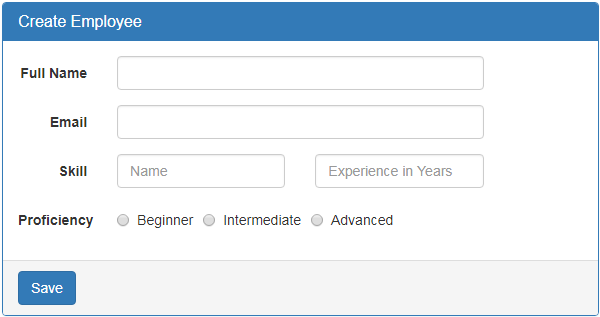
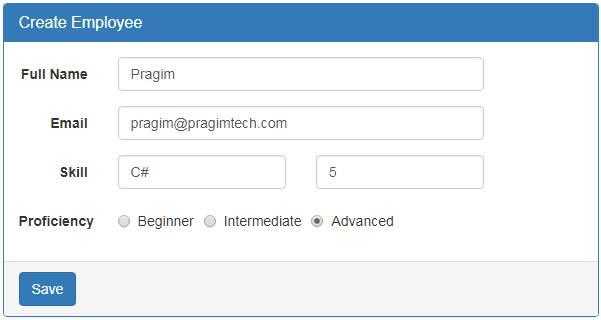
First let's understand why we need to update HTML elements on a form with new data. Let's say, we are using the form below to edit an existing employee. To be able to edit an existing employee details we have to retrieve data from a server and then update the form controls on the form with that retrieved data.
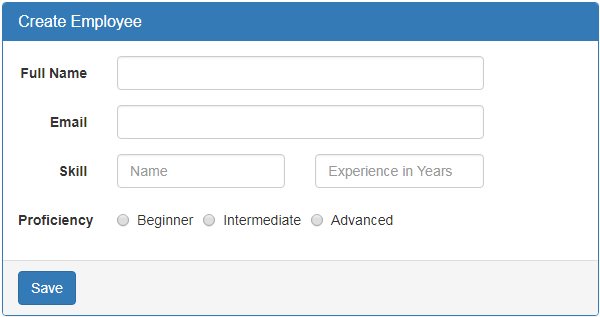
This can be very easily achieved using setValue() method.
Modify the HTML in "create-employee.component.html" file to include "Load Data"button
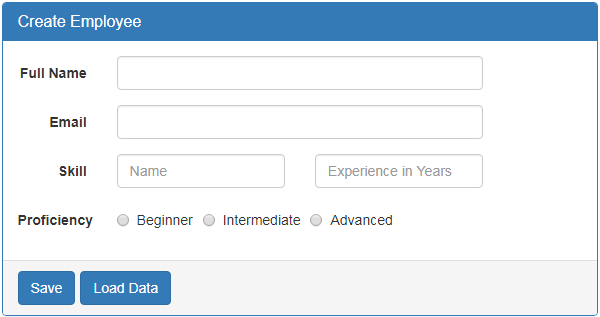
I included "Load Data" button in the bootstrap panel footer. Please note that, I have wrapped both the buttons in a <div> element with "btn-toolbar" class so we get a space between the buttons. Otherwise, they will be joined together.
In the component class, include onLoadDataClick() method
At this point, when "Load Data" button is clicked, the form controls are updated with the form model data specified in onLoadDataClick() event handler.
Updating only a sub-set of HTML elements on the form : If I want to update only a sub-set of HTML elements on the form, can I still use setValue() method. The answer is NO. Let's see what happens if I use setValue() method and try to update only fullName and email fields.
Comment the code in onLoadDataClick() event handler as shown below.
At this point, when "Load Data" button is clicked, you will see the following error in the browser developer tools.
Must supply a value for form control with name: 'skills'
If you want to update only a sub-set of form controls, then use patchValue() method instead of setValue().
At this point, when "Load Data" button is clicked, fullName and email form controls are updated as expected.
Can I use patchValue() to update all the formControls
Yes, you can use patchValue() to either update all the formControls or only a sub-set of form controls. In either cases, patchValue() method succeeds without any error. setValue() on the other hand can only be used to update all the form controls. You cannot use it to update a sub-set of form controls. If you try to, you will get an error.
So setValue() is very useful when we want to update all the form controls. If we accidentally miss a value for a formcontrol, setValue() fails with an error so we know we are missing something. patchValue() on the other hand silently fails without an error. So, you may not realise you have missed something, especially when you have a very large form group.
So in short, use setValue() to update all form controls and patchValue() to update a sub-set of form controls
This can be very easily achieved using setValue() method.
Modify the HTML in "create-employee.component.html" file to include "Load Data"button
I included "Load Data" button in the bootstrap panel footer. Please note that, I have wrapped both the buttons in a <div> element with "btn-toolbar" class so we get a space between the buttons. Otherwise, they will be joined together.
<div class="panel-footer">
<div class="btn-toolbar">
<button class="btn btn-primary" type="submit">Save</button>
<button class="btn btn-primary" type="button"
(click)="onLoadDataClick()">Load Data</button>
</div>
In the component class, include onLoadDataClick() method
onLoadDataClick(): void {
this.employeeForm.setValue({
fullName: 'Pragim Technologies',
email: 'pragim@pragimtech.com',
skills: {
skillName: 'C#',
experienceInYears: 5,
proficiency: 'beginner'
}
});
}
At this point, when "Load Data" button is clicked, the form controls are updated with the form model data specified in onLoadDataClick() event handler.
Updating only a sub-set of HTML elements on the form : If I want to update only a sub-set of HTML elements on the form, can I still use setValue() method. The answer is NO. Let's see what happens if I use setValue() method and try to update only fullName and email fields.
Comment the code in onLoadDataClick() event handler as shown below.
onLoadDataClick(): void {
this.employeeForm.setValue({
fullName: 'Pragim Technologies',
email: 'pragim@pragimtech.com',
// skills: {
// skillName: 'C#',
// experienceInYears: 5,
// proficiency: 'beginner'
// }
});
}
At this point, when "Load Data" button is clicked, you will see the following error in the browser developer tools.
Must supply a value for form control with name: 'skills'
If you want to update only a sub-set of form controls, then use patchValue() method instead of setValue().
onLoadDataClick(): void {
this.employeeForm.patchValue({
fullName: 'Pragim Technologies',
email: 'pragim@pragimtech.com',
// skills: {
// skillName: 'C#',
// experienceInYears: 5,
// proficiency: 'beginner'
// }
});
}
At this point, when "Load Data" button is clicked, fullName and email form controls are updated as expected.
Can I use patchValue() to update all the formControls
Yes, you can use patchValue() to either update all the formControls or only a sub-set of form controls. In either cases, patchValue() method succeeds without any error. setValue() on the other hand can only be used to update all the form controls. You cannot use it to update a sub-set of form controls. If you try to, you will get an error.
So setValue() is very useful when we want to update all the form controls. If we accidentally miss a value for a formcontrol, setValue() fails with an error so we know we are missing something. patchValue() on the other hand silently fails without an error. So, you may not realise you have missed something, especially when you have a very large form group.
So in short, use setValue() to update all form controls and patchValue() to update a sub-set of form controls