Angular reactive forms cross field validation
Let us understand this with an example. We want to ensure Email and Confirm Email fields have the same value. If they do not match, we want to display a validation message.
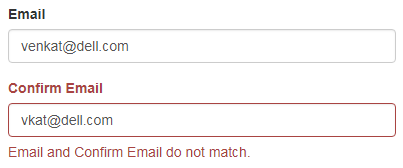
ConfirmEmail field is required and if no value is present it should display the required validation error.
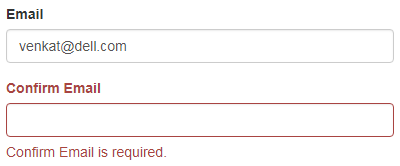
So in short, here is the requirement
Changes in the Template (create-employee.component.html)
Changes in the Component Clas (create-employee.component.ts) : The changes are commented and self-explanatory.
Finally, include the following validator function in create-employee.component.ts file, after the closing curly brace (}) of the CreateEmployeeComponent class.
So in short, here is the requirement
- Confirm Email field is required and if a value is present it should match with the Email field value.
- If no value is entered, it should display required error
- If a value is present and does not match with Email field, it should display do not match validation error
Changes in the Template (create-employee.component.html)
<div formGroupName="emailGroup">
<div class="form-group" [ngClass]="{'has-error': formErrors.email}">
<label class="col-sm-2 control-label" for="email">Email</label>
<div class="col-sm-8">
<input id="email" type="text" class="form-control"
formControlName="email" (blur)="logValidationErrors()">
<span class="help-block" *ngIf="formErrors.email">
{{formErrors.email}}
</span>
</div>
</div>
<div class="form-group" [ngClass]="{'has-error': formErrors.confirmEmail
|| formErrors.emailGroup}">
<label class="col-sm-2 control-label" for="confirmEmail">
Confirm Email
</label>
<div class="col-sm-8">
<input id="confirmEmail" type="text" class="form-control"
formControlName="confirmEmail" (blur)="logValidationErrors()">
<span class="help-block"
*ngIf="formErrors.confirmEmail || formErrors.emailGroup">
{{formErrors.confirmEmail ? formErrors.confirmEmail
: formErrors.emailGroup}}
</span>
</div>
</div>
</div>
- Notice email and confirmEmail form controls are nested in a formgroup with name emailGroup
- Bootstrap has-error class is conditionally added if either confirmEmail or emailGroup properties of the formErrors object are truthy
- confirmEmail property stores required error - Confirm Email is required.
- emailGroup property stores do not match error - Email and Confirm Email do not match
- We do not have these 2 properties on the formErrors object yet. We will add them in the component class in just a bit.
- Similarly, the span element that displays the validation error is bound to confirmEmail or emailGroup properties of the formErrors object. So the span element is displayed only if either of the properties are truthy.
{{formErrors.confirmEmail ? formErrors.confirmEmail : formErrors.emailGroup}}
Changes in the Component Clas (create-employee.component.ts) : The changes are commented and self-explanatory.
// Group properties on the formErrors object. The UI will bind to these properties
// to display the respective validation messages
formErrors = {
'fullName': '',
'email': '',
'confirmEmail': '',
'emailGroup': '',
'phone': '',
'skillName': '',
'experienceInYears': '',
'proficiency': ''
};
// This structure stoes all the validation messages for the form Include validation
// messages for confirmEmail and emailGroup properties. Notice to store the
// validation message for the emailGroup we are using emailGroup key. This is the
// same key that the matchEmails() validation function below returns, if the email
// and confirm email do not match.
validationMessages = {
'fullName': {
'required': 'Full Name is required.',
'minlength': 'Full Name must be greater than 2 characters',
'maxlength': 'Full Name must be less than 10 characters.',
},
'email': {
'required': 'Email is required.',
'emailDomain': 'Email domian should be dell.com'
},
'confirmEmail': {
'required': 'Confirm Email is required.'
},
'emailGroup': {
'emailMismatch': 'Email and Confirm Email do not match.'
},
'phone': {
'required': 'Phone is required.'
},
'skillName': {
'required': 'Skill Name is required.',
},
'experienceInYears': {
'required': 'Experience is required.',
},
'proficiency': {
'required': 'Proficiency is required.',
},
};
// email and confirmEmail form controls are grouped using a nested form group
// Notice, the validator is attached to the nested emailGroup using an object
// with key validator. The value is our validator function matchEmails() which
// is defined below. The important point to keep in mind is when the validation
// fails, the validation key is attached the errors collection of the emailGroup
// This is the reason we added emailGroup key both to formErrors object and
// validationMessages object.
ngOnInit() {
this.employeeForm = this.fb.group({
fullName: ['', [Validators.required, Validators.minLength(2), Validators.maxLength(10)]],
contactPreference: ['email'],
emailGroup: this.fb.group({
email: ['', [Validators.required, emailDomain('dell.com')]],
confirmEmail: ['', [Validators.required]],
}, { validator: matchEmails }),
phone: [''],
skills: this.fb.group({
skillName: ['', Validators.required],
experienceInYears: ['', Validators.required],
proficiency: ['', Validators.required]
}),
});
this.employeeForm.valueChanges.subscribe((data) => {
this.logValidationErrors(this.employeeForm);
});
this.employeeForm.get('contactPreference').valueChanges.subscribe((data: string) => {
this.onContactPrefernceChange(data);
});
}
logValidationErrors(group: FormGroup = this.employeeForm): void {
Object.keys(group.controls).forEach((key: string) => {
const abstractControl = group.get(key);
this.formErrors[key] = '';
// Loop through nested form groups and form controls to check
// for validation errors. For the form groups and form controls
// that have failed validation, retrieve the corresponding
// validation message from validationMessages object and store
// it in the formErrors object. The UI binds to the formErrors
// object properties to display the validation errors.
if (abstractControl && !abstractControl.valid
&& (abstractControl.touched || abstractControl.dirty)) {
const messages = this.validationMessages[key];
for (const errorKey in abstractControl.errors) {
if (errorKey) {
this.formErrors[key] += messages[errorKey] + ' ';
}
}
}
if (abstractControl instanceof FormGroup) {
this.logValidationErrors(abstractControl);
}
});
}
Finally, include the following validator function in create-employee.component.ts file, after the closing curly brace (}) of the CreateEmployeeComponent class.
// Nested form group (emailGroup) is passed as a parameter. Retrieve email and
// confirmEmail form controls. If the values are equal return null to indicate
// validation passed otherwise an object with emailMismatch key. Please note we
// used this same key in the validationMessages object against emailGroup
// property to store the corresponding validation error message
function matchEmails(group: AbstractControl): { [key: string]: any } | null {
const emailControl = group.get('email');
const confirmEmailControl = group.get('confirmEmail');
if (emailControl.value === confirmEmailControl.value || confirmEmailControl.pristine) {
return null;
} else {
return { 'emailMismatch': true };
}
}
